

No one wants ergonomics just for the sake of it. People just want to avoid pain. Before I used ergonomic keyboards, I wondered why anyone would use such a strange keyboard.
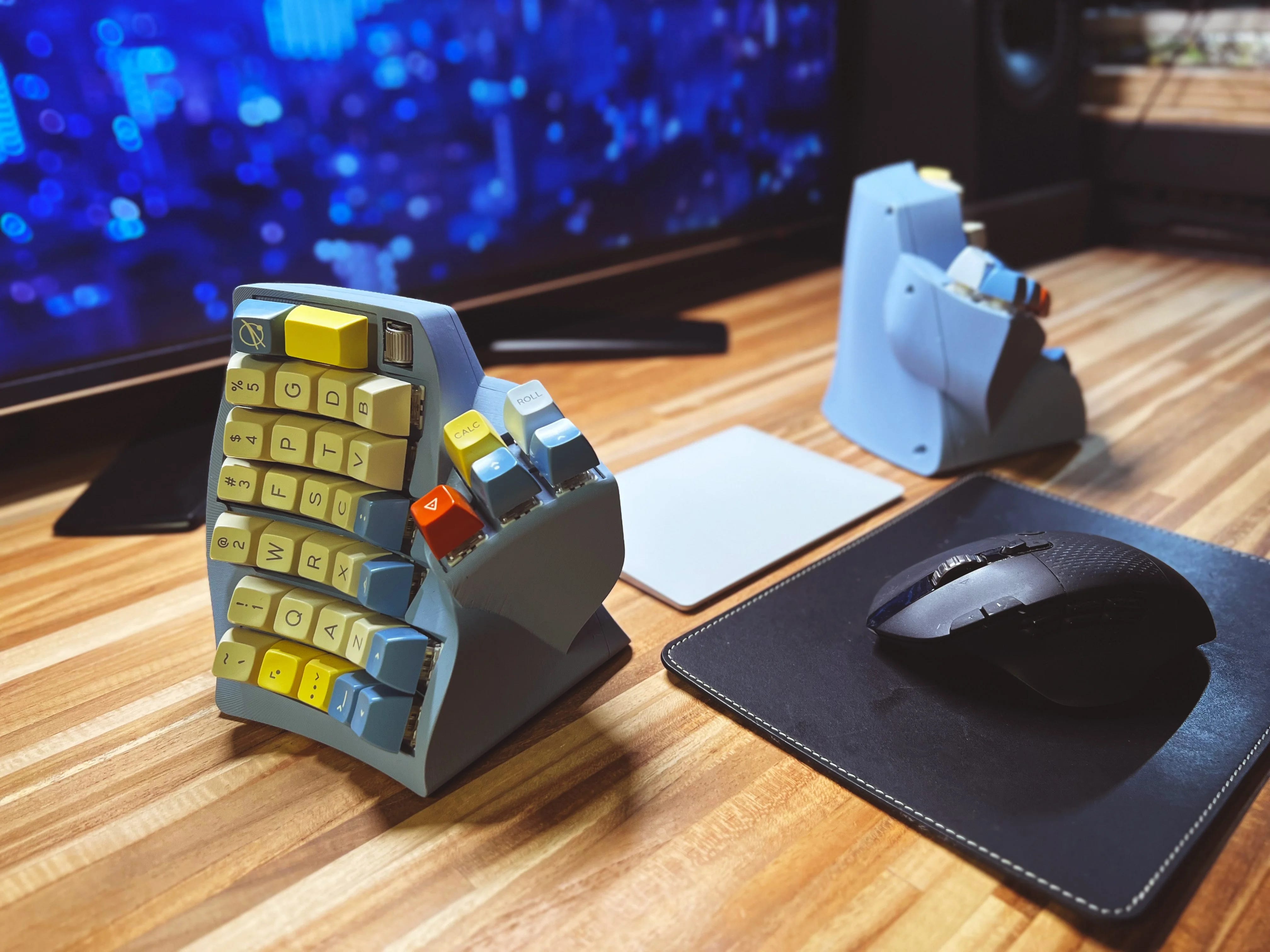
The best ergonomic keyboard is the one with the minimum amount of ergonomics that you need to prevent pain. There are so many ergonomic features on the market that are not worth it.
Keyboard Layout Changes
There are a ton of different layouts you can get that offer ergonomic benefits. However any layout change that you make better be worth it since you’ll need to unlearn your existing muscle memory. Some popular layouts:
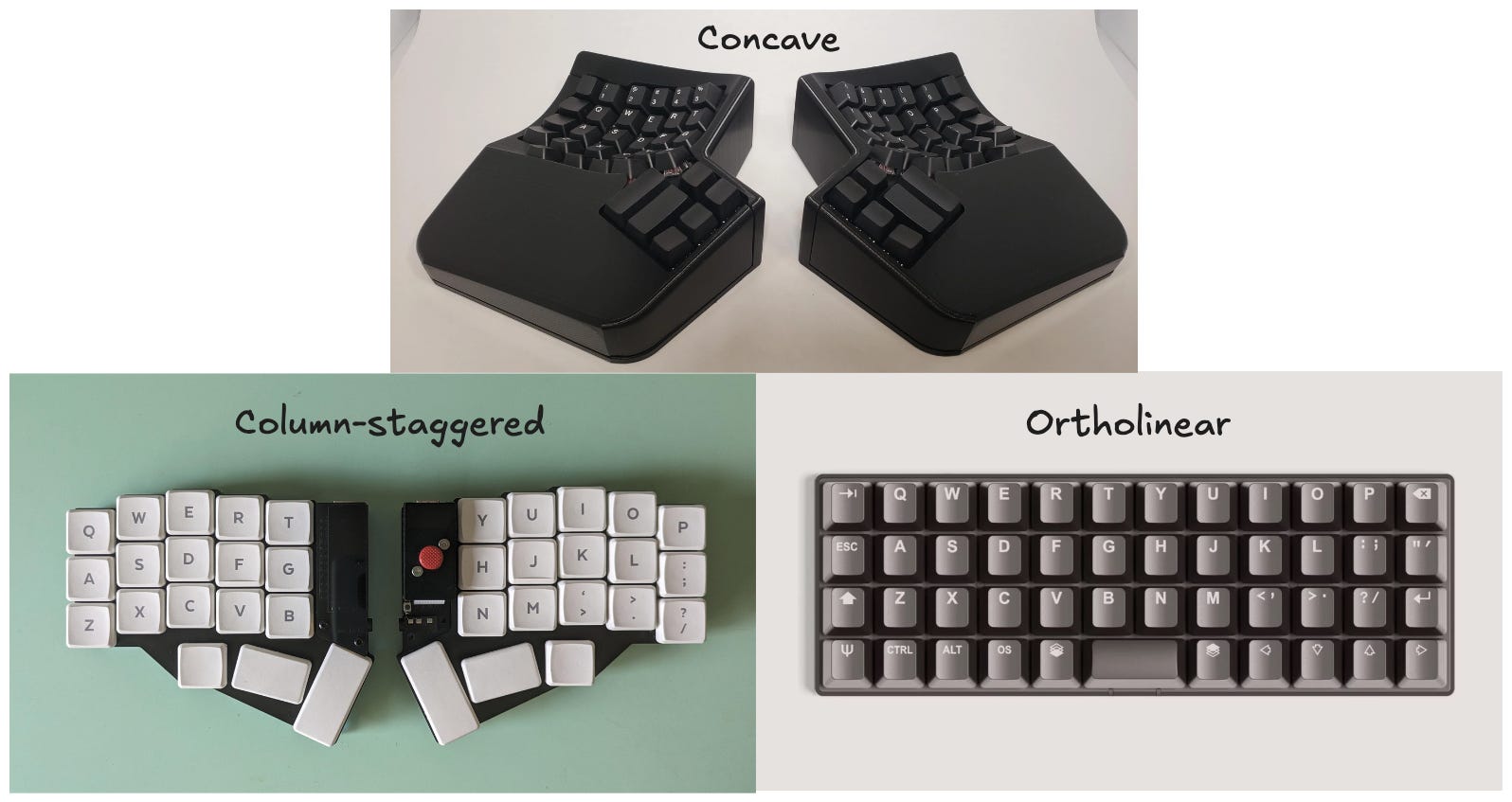
I’ve tried all of these and they were a huge pain because I kept missing keys. I even had a friend who bought a $365 Moonlander keyboard who eventually gave up after trying hard to learn it for 2 months. Missing keys is non-negotiable.
Thumb Clusters and Programmable Layers
Some keyboards add “thumb clusters” which are customizable keys for your thumbs. This lets you replace functions that you reach for by using your thumb.
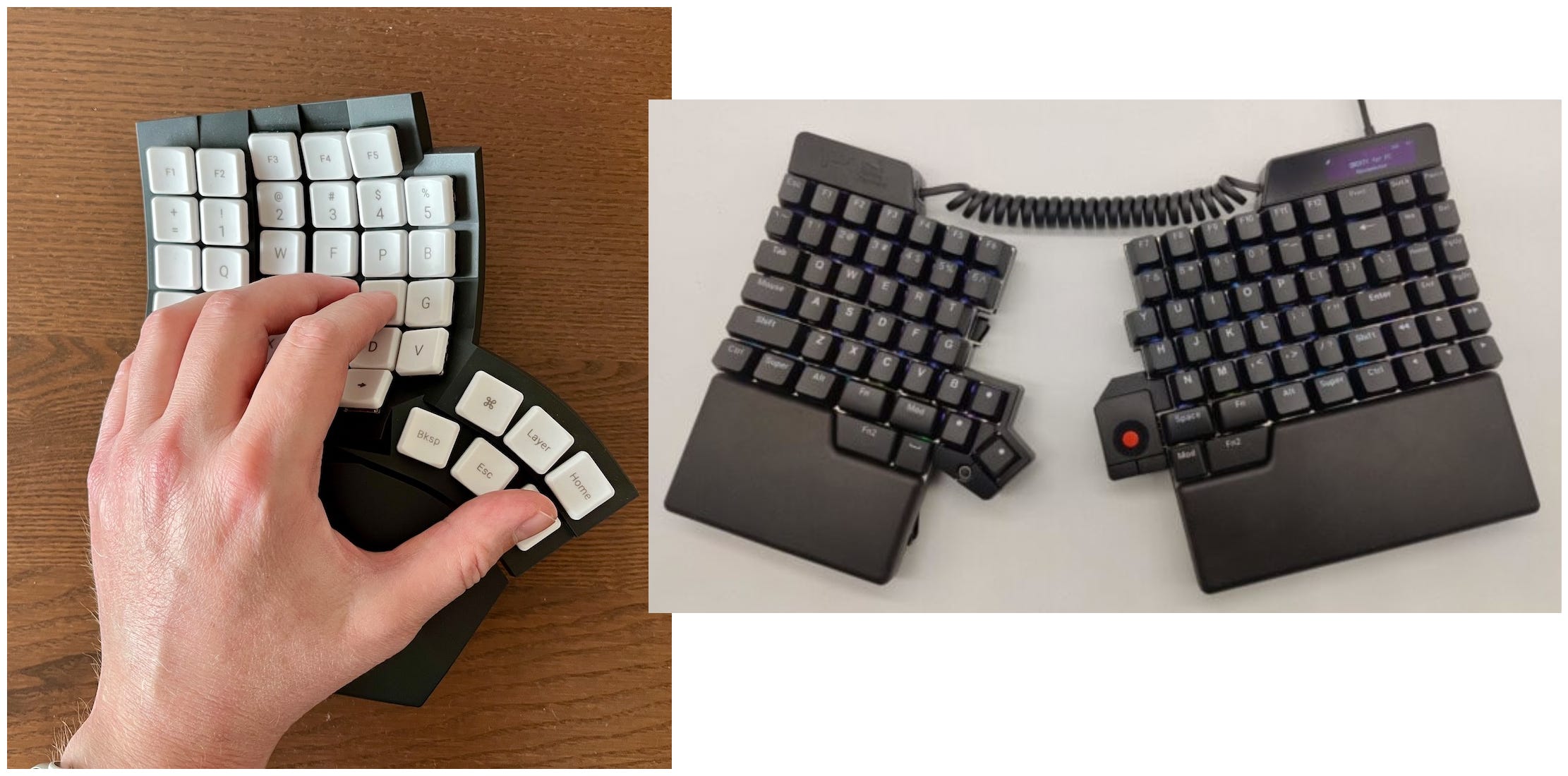
Some people also program their keyboards so that easy-to-reach keys (e.g. h, j, k, l) turn into arrows or shortcuts when you press an extra “layer” button.
Both ideas sound good but add complexity. You have to learn (and unlearn) your muscle memory, and it ties you to one setup. I didn’t want that, especially since I still use my laptop keyboard in meeting rooms and when traveling.
There are some well-built ergonomic keyboards out there, but the design is often way more ergonomic than is impactful. Plus, I haven’t seen any with the scissor switch keys I love on my MacBook.
What Is Worth It
My right wrist is sensitive to pain from typing because I played too much tennis when I was younger. After having tried pretty much every ergonomic keyboard on the market, I’ve narrowed down the features that have actually reduced my pain. The two most impactful features are:
Split keyboard - This lets me straighten out my wrist which removes a majority of the pain (~70-80%) along the side of my wrist. I can feel it immediately.
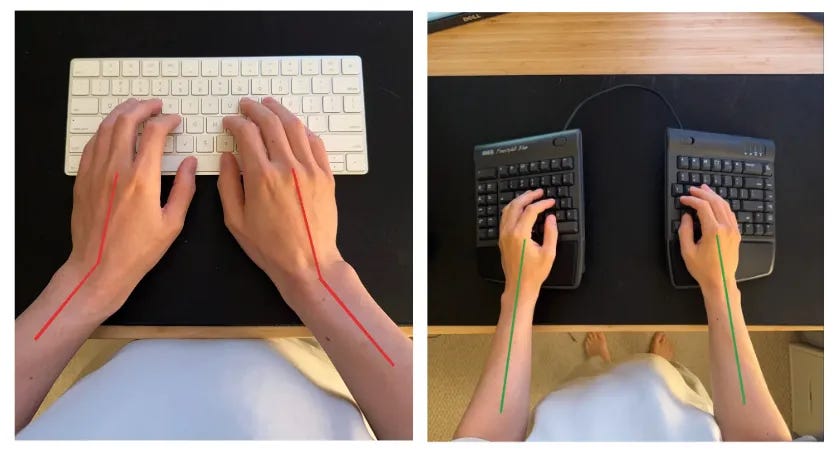
Tenting - I tested removing the tenting. Having to turn my wrists inward to stay unnaturally level with the flat desk adds immediate tension.
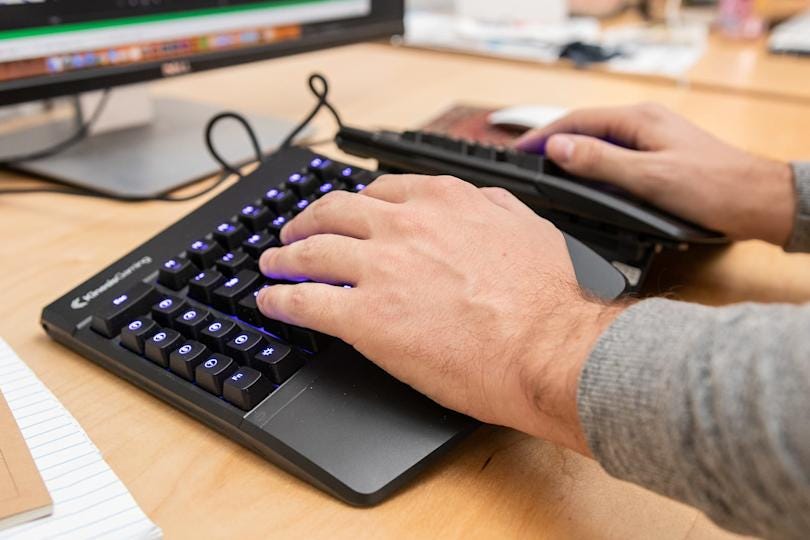
With just those two features, most of the upfront pain is gone for me. However, there’s also pain I get after long typing sessions. What I’ve noticed helps most with this kind of pain:
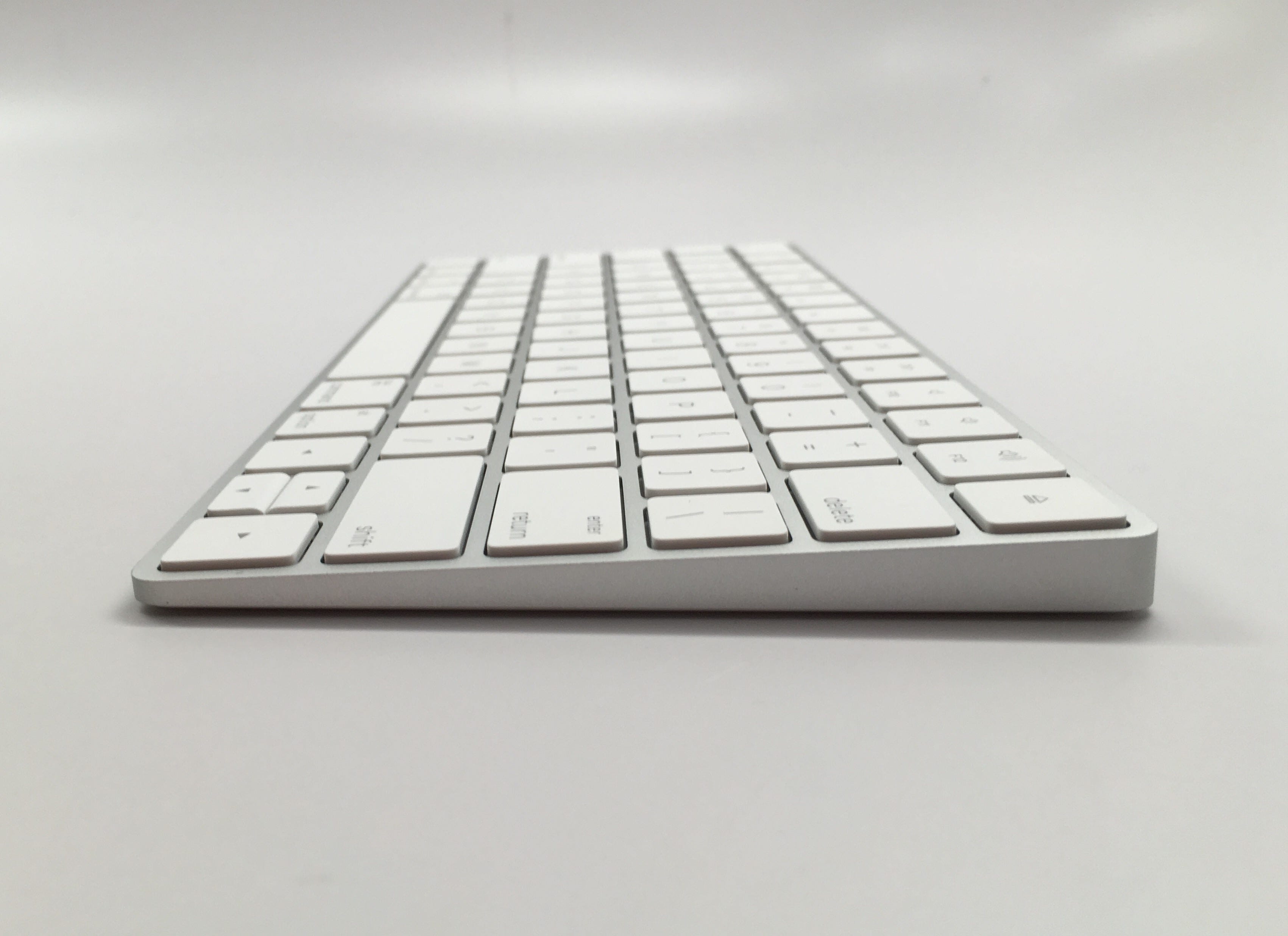
Ultra thin keys - My fingers don’t tend to get tired on my Macbook keyboard because the travel distance is insanely low and the keys are super light
Palm rests – I tried going a month without palm rests. Without them, your wrists float (especially with tenting), which gets tiring. Also, I missed the first few key presses a lot because my hands weren’t anchored and I don’t look at the keyboard.
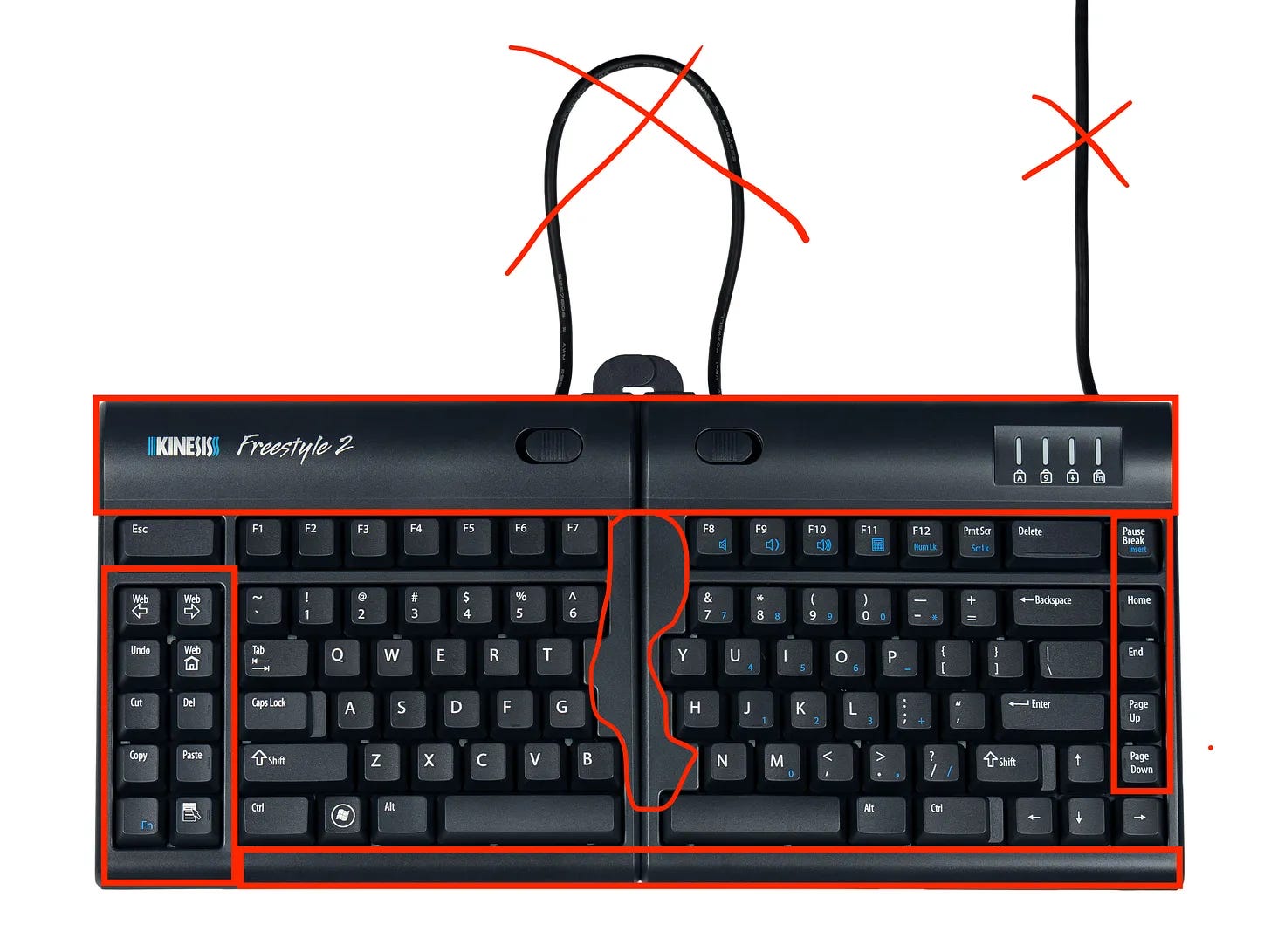
I haven’t seen anything on the market with all of these features so I’m building it with a few friends. Hopefully this info was helpful for you to learn whats actually important in an ergonomic keyboard. Right now I’m using a Kinesis Freestyle2 but there’s a lot I wish I could change about it:
If you like your MacBook or laptop keyboard but want it to be split and ergonomic, you might be interested in what we’re building. I’ll keep posting updates on this newsletter as we go and hope to launch on Kickstarter soon. Follow along if you’re interested!
In the coming weeks I’ll reveal the design which to me is one of the most exciting parts of this project.
Best,
Ryan Peterman
I agree that layout changes are rarely worth the trouble. It really comes down to the migration tax. In my experience building systems, the riskiest move is chasing theoretical peak performance while ignoring the cognitive overhead of breaking a standard protocol. Splitting and tenting are pragmatic in-place upgrades. They fix the physical bottleneck without a breaking API change to muscle memory. I deal with enough breaking changes at work as it is.
Looking forward to it!